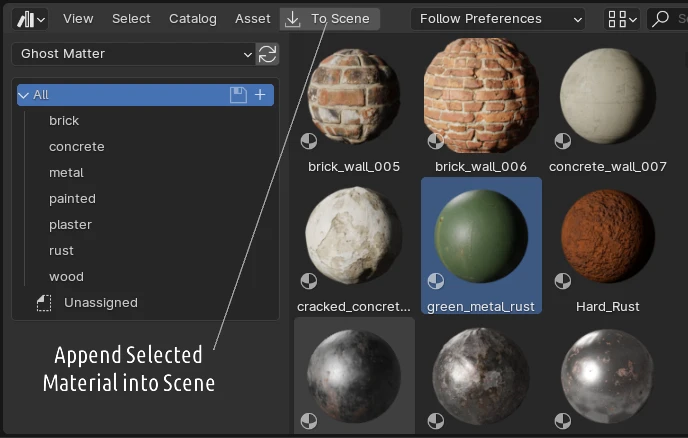
Ghost Matter UI
GhostTrees are edited in a dedicated node editor.
This tree makes it possible to generate a complex classical material.
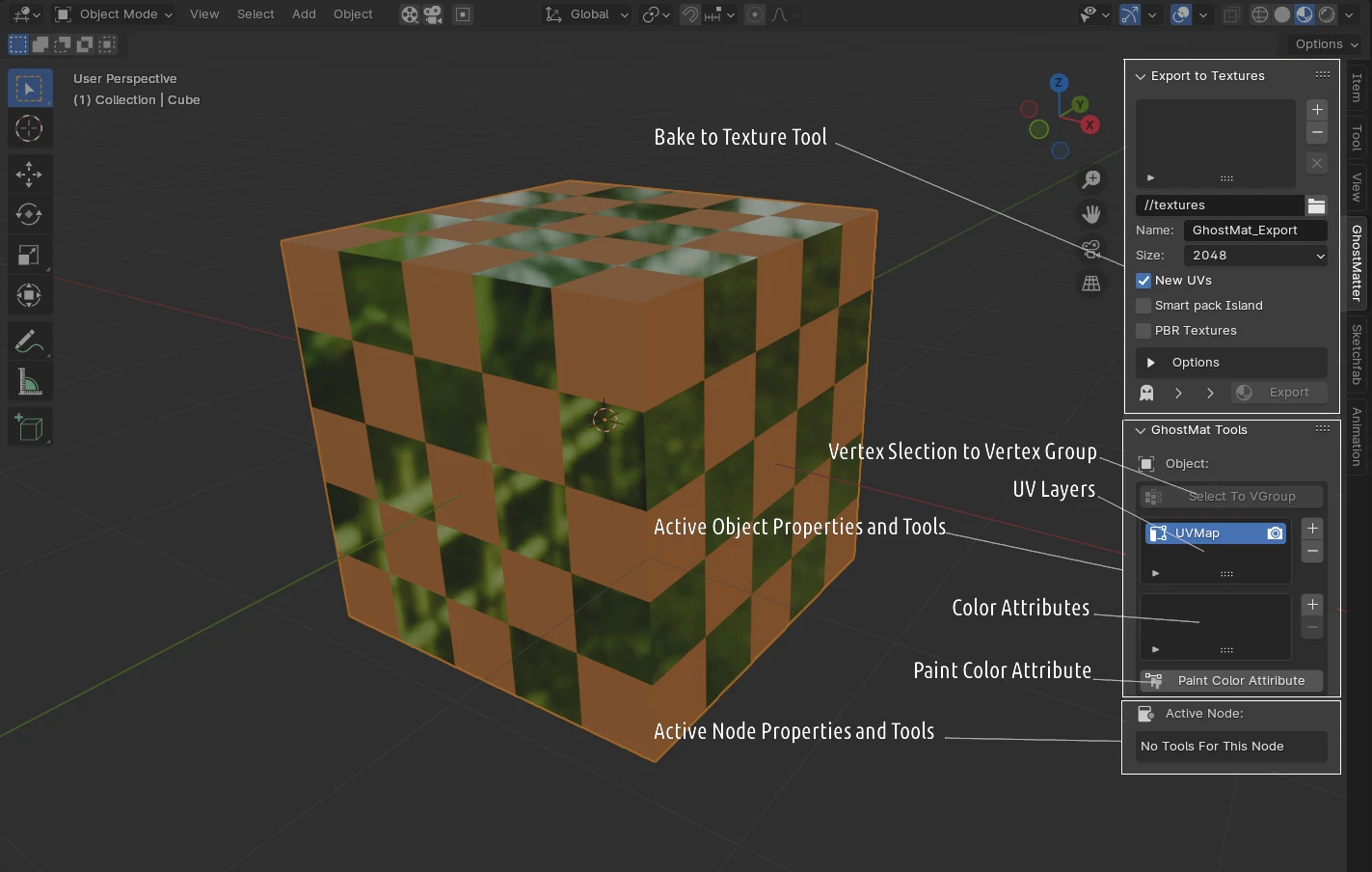
Some nodes fonctionnalies are in the 3D view N-Panel
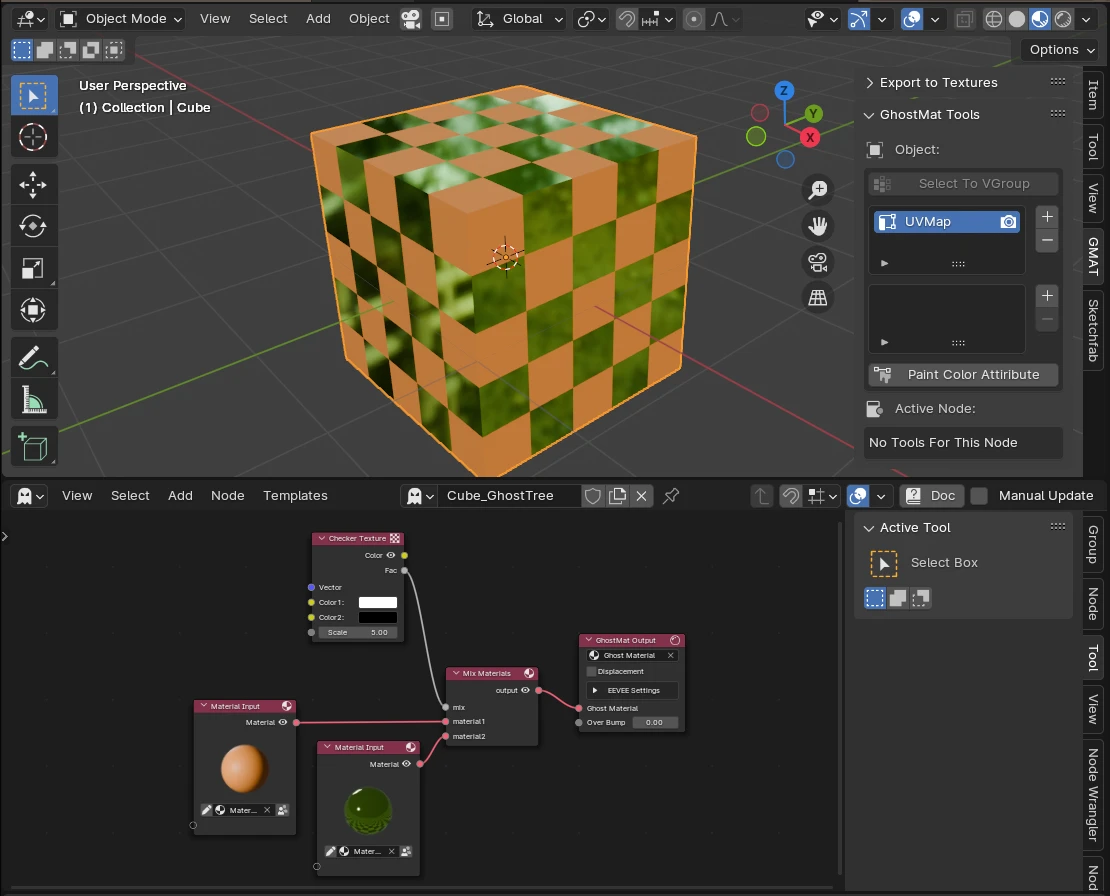
GhostTree & Output Material
A GhostTree doesn't render on its own: everything you build in it is compiled into one real Blender material — the tree's Output Material. That material is what actually appears on your object.
So there are always two linked things:
- the GhostTree (the node group you edit), selected in the header bar at the top of the editor;
- its Output Material, shown right next to it in the header — the material the tree writes into.
For the result to be visible, that Output Material must be on the active object (in a material slot). The header keeps the link visible and lets you fix it in one click:

From left to right, the header shows:
- the GhostTree selector — the ghost icon with its dropdown lists every GhostTree of the file, then the editable name of the current tree, Fake User (shield), Duplicate and Unlink (✕);
- the alert badge (only when something is wrong — see below), then the name of the Output Material (shown in red while there is an alert);
- the fix buttons that go with the alert (Assign, New Material, From Slot…);
- the Pin toggle, and on the right the Doc button and the Manual Update option.
Alerts
- No Material — the tree has no output material yet. Use New Material to create one and assign it to the active object, or From Slot to turn the object's current material into the tree's output.
- Material Conflict — the object's active material is not the tree's output (a different material is on the object). Use Assign to put the tree's output back on the object. If the material on the object belongs to another GhostTree, a Slot's Tree button also appears: it switches the editor straight to that tree.
- Not Assigned — the output material exists but the object isn't using it. Use Assign.
Hover the badge to get an explanation that names the exact materials and tree involved.
Other header actions
- Duplicate (next to the tree name) — makes a copy of the whole setup (GhostTree + its output material) and assigns the new material to the object — handy for creating a variant without touching the original.
- Unlink (✕) — detaches the GhostTree from the editor and removes the material from the object's active slot. The GhostTree data-block itself is not deleted.
- START — shown when no tree is open: creates a complete GhostTree (Mix + Input Material + Output) with a fresh material, ready to build on. The ghost dropdown next to it lets you pick an existing tree instead.
- Doc — opens this documentation in your browser.
- Manual Update — by default the material is rebuilt automatically as you edit the tree. Tick this option to stop the automatic rebuild: an UPDATE button appears (highlighted when there are pending changes) and the material is rebuilt only when you press it. Useful on heavy trees.
Tip
The alert badge (No Material / Material Conflict / Not Assigned) is your quick check that "what I edit" and "what I see on the object" are the same material. When there's no badge, they match.
Node Editor
Create new GhostTree , a material output and setup your tree:

Visualization:

Nodes
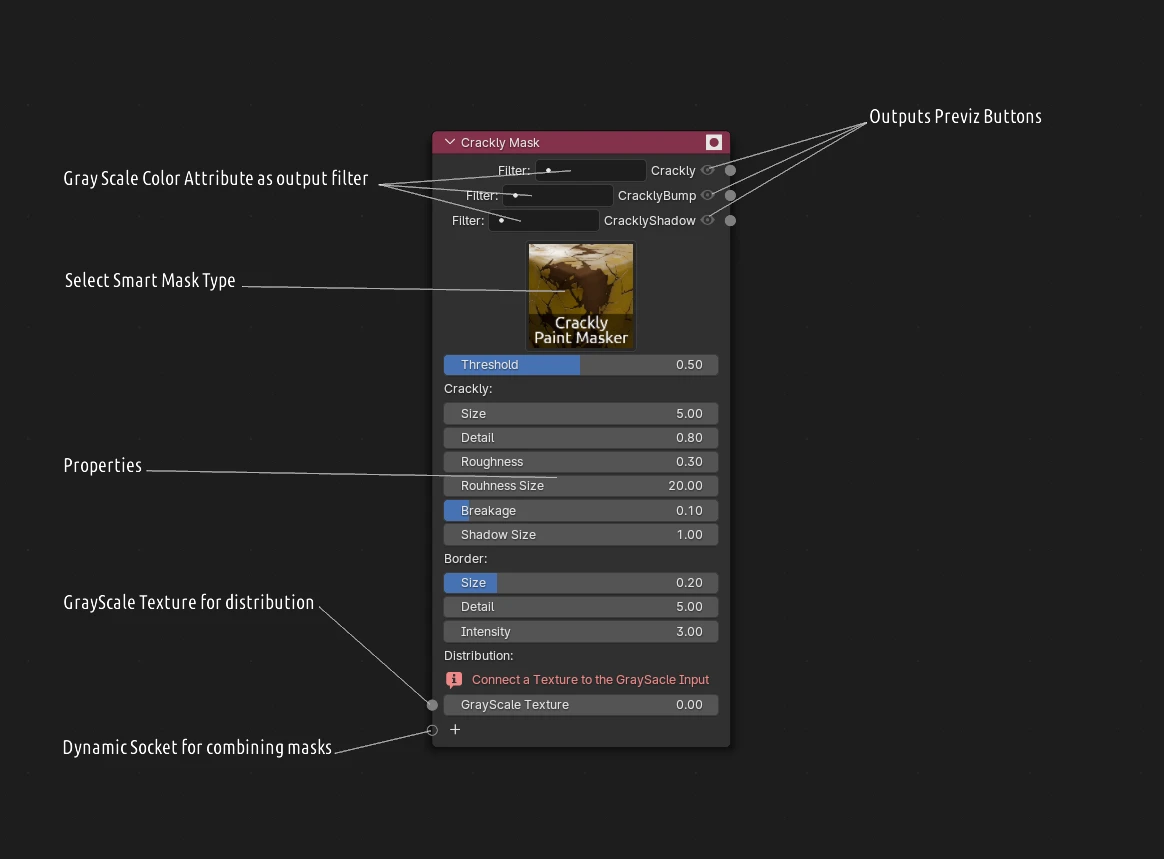
Smarts Masks
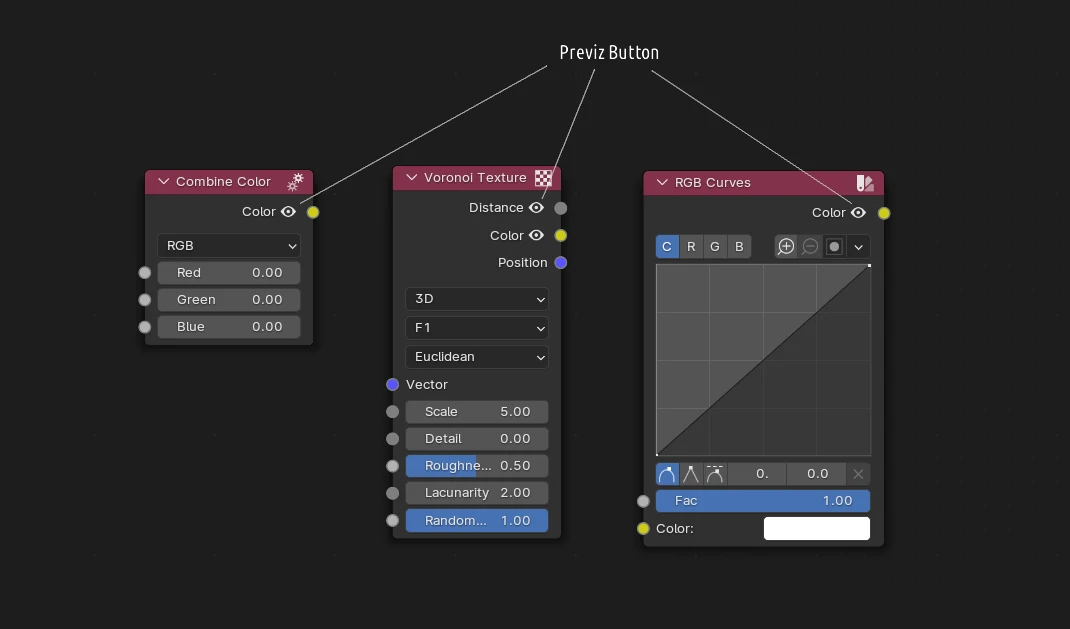
Classic nodes
Classic nodes have same behaviour as in the shader editor
3D View
Assets Browser