Selection To Color Attribute
What's it for ?
Paints the current selection of the mesh into a color attribute with the color you choose (pure white by default). You can do it in a new attribute (everything else is pure black) or in the active attribute (everything else is left as it is).
With the default white, it gives you a clean black and white mask, painted by selecting instead of brushing, that you can read in the Ghost Matter editor with an Attribute node, to drive a mix, a mask or any value.
Where is it ?
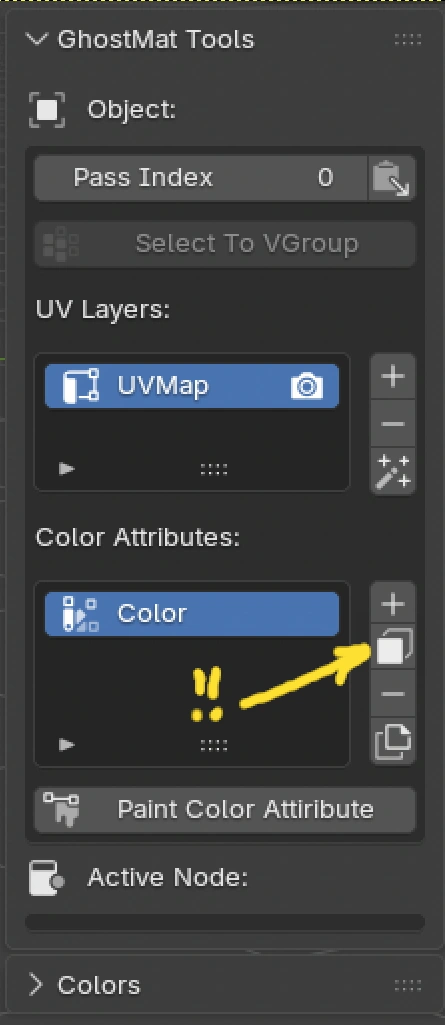
In the GhostMatter tab of the 3D viewport, in the GhostMat Tools panel, Object section, in the Color Attributes list : the button with the face selection icon, between the + and the - buttons.
Note
The object has to be a mesh. It works in Object Mode, in the paint modes and in Edit Mode (the selection of the edit mesh is used).
The popup
| Option | Description |
|---|---|
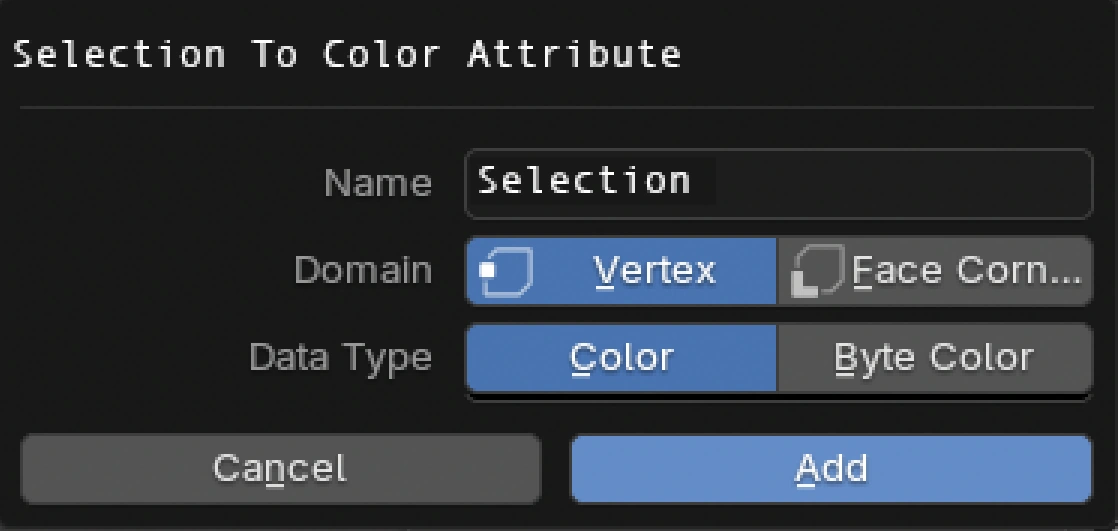
| Target | New Attribute : creates a new color attribute (black) then colors the selection. Edit Active Attribute : colors the selection in the attribute that is active in the list, without touching the other elements. The Name, Domain and Data Type options then disappear : the attribute keeps its own. |
| Name | Name of the new color attribute (Selection by default). If the name already exists, Blender adds a number. |
| Domain | Where the color is stored. Vertex : the selected vertices are white. Face Corner : a corner is white when its vertex is selected, or, when only the face selection mode is active, when its face is selected (a sharp mask per face, without any gradient). |
| Data Type | Color (floating-point, recommended) or Byte Color (8 bits). |
| Color | The color given to the selection (pure white by default). |
| Palette | A palette selector, under the Color field (by default the Palette of the object, set in the GhostMat Tools panel above Pass Index; no palette if the object has none : pick one of the palettes of the file). Its colors are shown as swatches, in rows of 9 (up to 72 colors) : click a swatch to use its color, it is copied into the Color field. |
| Apply | Colors the selection (in a new attribute or in the active one). |
Tip
For a mask with hard edges between faces, use Face Corner with the face selection mode. With Vertex, the color is interpolated between the vertices, so the mask has a soft gradient.
Good to know
- The new attribute becomes the active color attribute of the mesh.
- The attribute is a snapshot : it does not follow the selection afterwards. Click the button again to make a new one (or delete the old one with the - button).
- In New Attribute mode, everything not selected is pure black (alpha 1) because the new attribute starts black. In Edit Active Attribute mode, the elements that are not selected keep their values : you can call it several times with different selections and colors to build a color map.