Image Texture
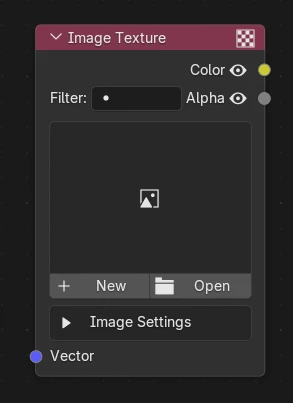
What's it for ?
Samples an image (or a movie / image sequence) onto your geometry — the GhostMat version of Blender's Image Texture, with paint, save and clearer movie controls built into the node.
- Vector (input) — UV / mapping used to place the image. Left unplugged, it uses the default UVs.
- Color (output) — the sampled image color.
- Alpha (output) — the image alpha channel.
Paint Image
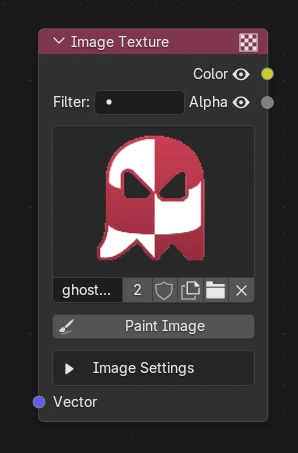
Paint Image jumps straight into Texture Paint on this image — handy to touch it up without leaving your setup. If the node is fed by a UV Decal / UV Map, it paints through that mapping.
Save / Discard
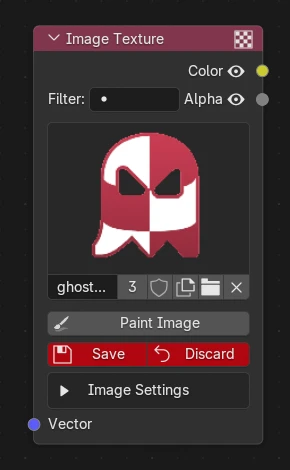
Image I/O is available right on the node:
- Save — write the image back to its file.
- Save as — write it to a new file (choose PNG / JPG / OpenEXR).
- Discard — reload the image from disk, dropping unsaved paint.
Note
An image with unsaved changes (e.g. after painting) shows Save / Discard; a clean image shows Save as instead.
Image Settings
Open the collapsible Image Settings panel to control how the image is read:
- Interpolation — how pixels are sampled (Linear / Closest / Cubic / Smart) — from smooth to crisp/pixelated.
- Projection — how the image wraps onto the mesh (Flat / Box / Sphere / Tube). Box adds a Blend to soften the seams between its faces.
- Extension — what happens outside the image bounds (Repeat / Extend / Clip / Mirror).
- Color Space / Alpha — how the image's color and alpha are interpreted (e.g. sRGB vs Non-Color, Straight vs Premultiplied).
Movie / Sequence
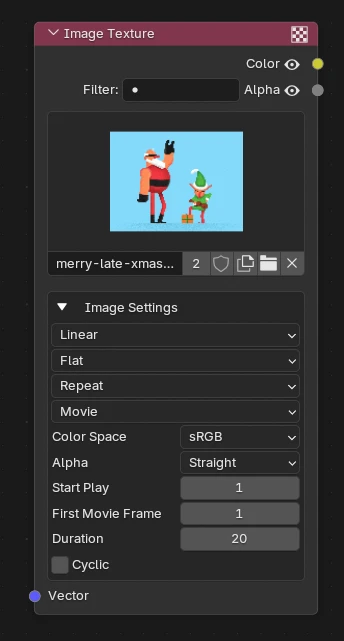
When the image Source is a Movie or Image Sequence, clearer time controls appear:
- Start Play — the timeline frame at which playback starts.
- First Movie Frame / First Image Sequence — the first frame of the source to read.
- Duration — how many frames to play.
- Cyclic — loop the clip.