Output node
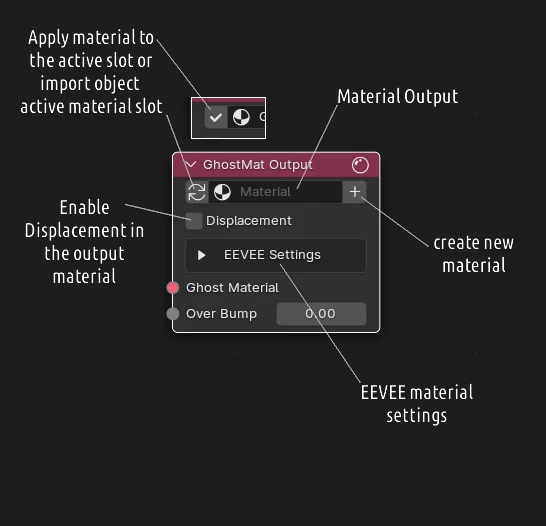
The Output node is the end of a GhostMat tree: plug your shading into it and it drives a real Blender material on your object. Everything upstream is compiled into that material.
One output per tree
A GhostMat tree can contain only one Output node. If you add a second one, it is removed automatically — the tree always keeps a single output.
Output Material
The material this node compiles into — the tree's Output Material — is managed from the editor header bar (next to the GhostTree selector), not on the node itself.
There you can pick / create the output material and fix the link to your object (Assign, From Slot, Duplicate), with an alert badge (No Material / Material Conflict / Not Assigned) when the object isn't using it. See GhostTree & Output Material for the full explanation.
Inputs
- Ghost Material — the shading to output; plug your final material/mix here.
- Over Bump — extra bump added on top of the result (see below).
- Thickness — thickness input (EEVEE, for thin-film / translucency effects).
Displacement
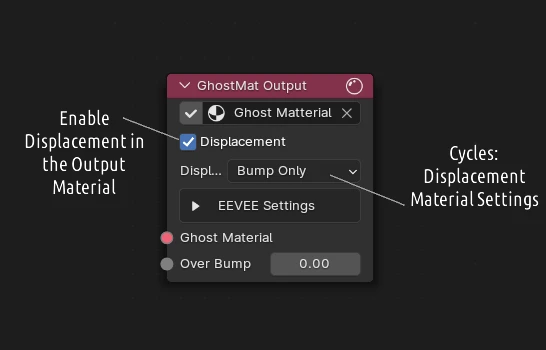
In Cycles, choose the Displacement method (Bump only / Displacement / Both).
EEVEE Settings
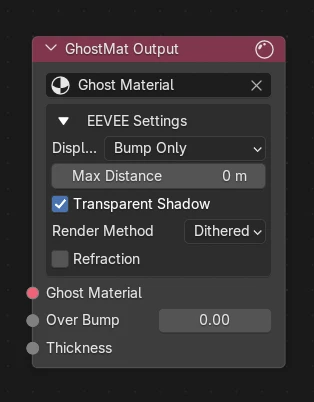
Open the collapsible EEVEE Settings panel to tune how the material renders in EEVEE:
- Displacement — displacement method used by EEVEE.
- Max Distance — maximum displacement distance.
- Transparent Shadow — let the material cast transparent (alpha) shadows.
- Render Method — Dithered or Blended. It drives the two settings below:
- Refraction (Dithered only) — raytraced transmission for refractive materials.
- Transparency Overlap (Blended only) — how overlapping transparent surfaces blend.
Over Bump
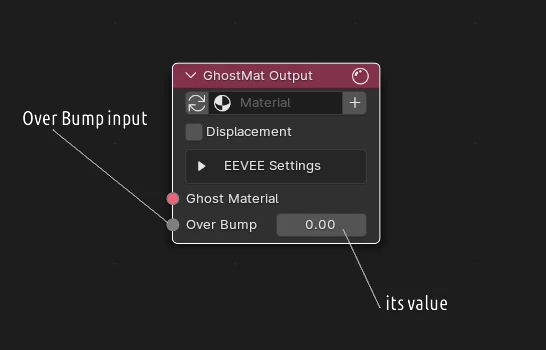
Adds a global bump on top of the final result — a quick way to give surface relief without touching each material.
Micro-displacement
If micro-displacement is used, Over Bump can cause artifacts. In that case, prefer the displacement setup specific to each material.