Multi Color Mix
What's it for ?
Stack and blend several colors or decal textures in a single node — like a mini layer stack. Each layer has its own color, its own blend mode, and its own alpha, and the node gives you back the combined Color and a combined Alpha mask. Perfect for layering decals (logos, stickers, dirt, labels) over a base, or mixing a handful of colors without a spaghetti of Mix nodes.
Tip
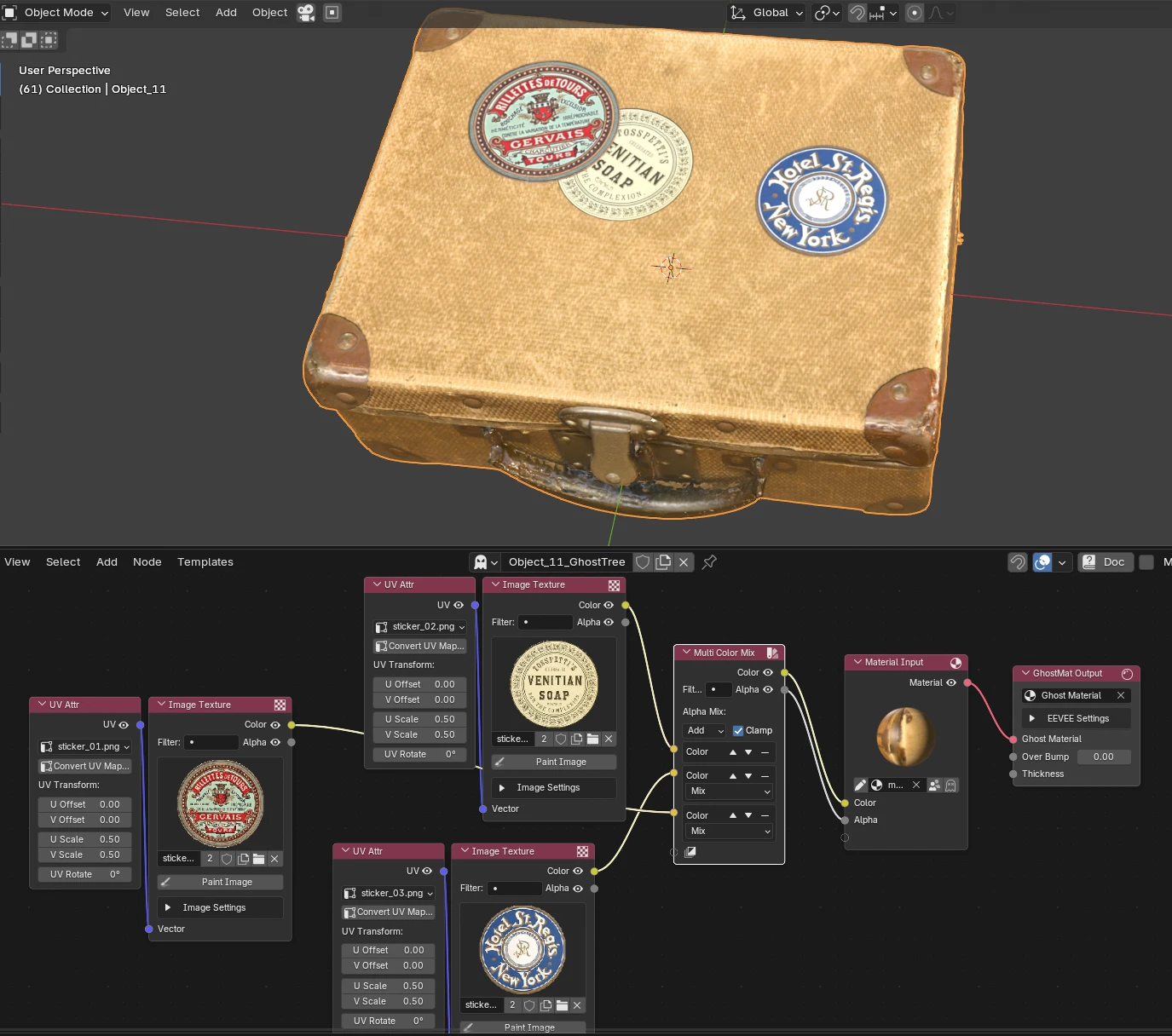
Feed an Image Texture into a layer: its alpha is used automatically as the layer's mask (where the decal shows), and it also feeds into the node's Alpha output.
How the stack works
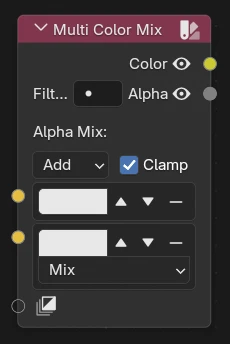
- The top socket (base) is the background. It has no blend mode — it's simply what everything else sits on top of.
- Each socket below is a layer painted over the ones above it, using its own blend mode. The lowest layer (just above the empty socket) ends up on top.
- Connect anything to the empty socket at the bottom to add a new layer. Layers can be reordered (▲ / ▼) and removed (✕).
Per-layer controls
Each color layer has:
- Color — the layer's color (or a label when a texture is plugged in). Its alpha (the color picker's A channel) sets how strongly the layer applies when no image is connected.
- Blend — how this layer blends over the ones above (Mix, Multiply, Screen, Overlay, Add…). Not shown on the base layer.
- ▲ / ▼ — move the layer up or down in the stack.
- ✕ — delete the layer.
Note
A layer's alpha is taken from its connected image if there is one, otherwise from its color swatch. That alpha both masks the blend and feeds the Alpha output.
Node options
- Alpha Mix — how every layer's alpha is combined into the Alpha output: Add (union / sum), Subtract, or Multiply (intersection).
- Clamp — keep the resulting alpha within 0–1.
Outputs
- Color — the final stacked color.
- Alpha — the combined coverage of all layers (great to drive transparency, or as a mask downstream).
Setup Example
Plug a base color (or image) into the top socket, drop your decal images into the layers below, pick a blend per decal, and route Color + Alpha into your material.